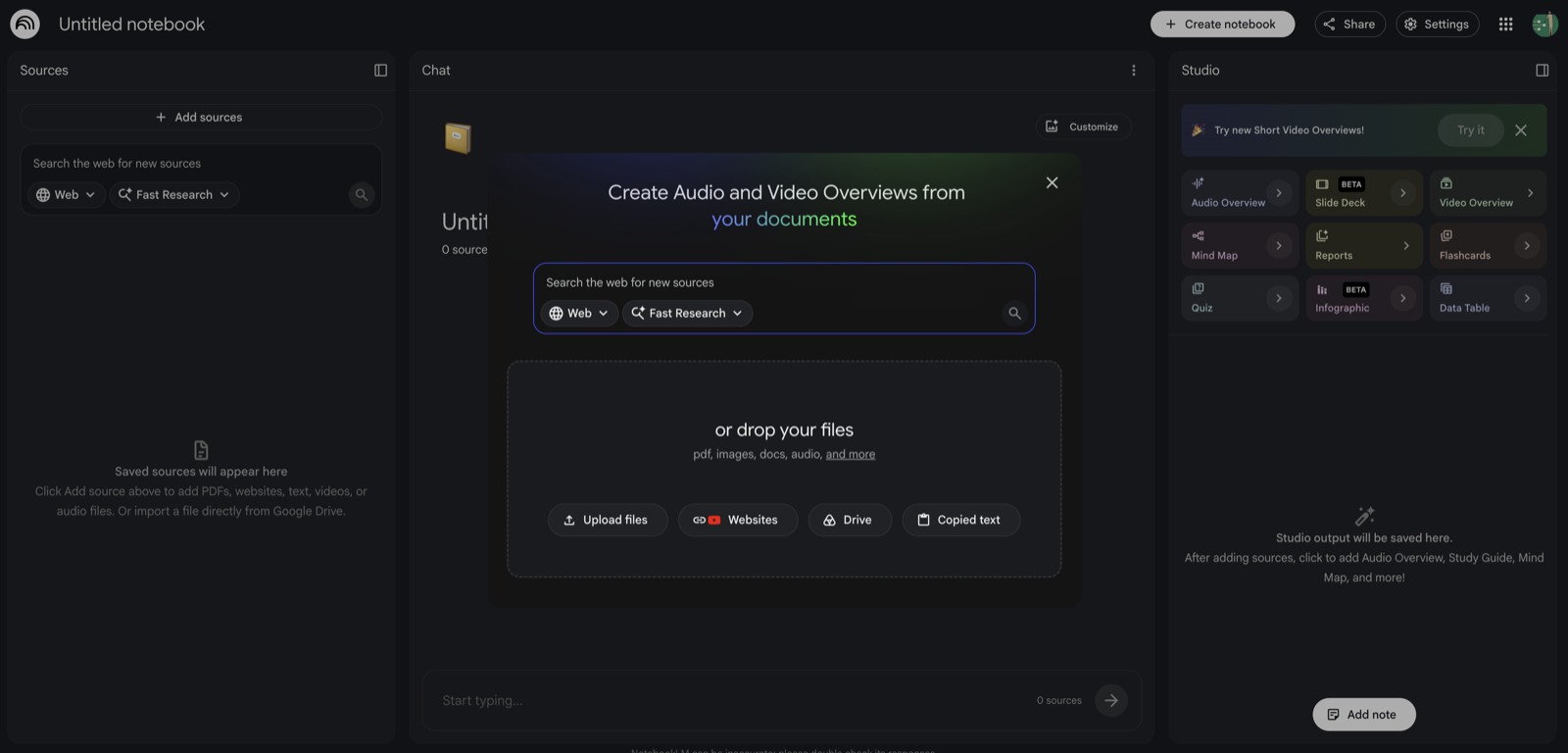
Gemini Notebook (formerly NotebookLM) isn’t exactly an assistant like Custom GPTs, Gems, or Claude Projects, but it’s incredibly powerful for understanding and working with a lot of content. In this lesson, you’ll see how Gemini Notebook acts like an intelligent research partner, making dense materials easier to absorb. Plus, you’ll learn how we used it to create many of the audio and video assets in this course.
What is Gemini Notebook?
Gemini Notebook is Google’s AI-powered research and note-taking tool that becomes an expert on your documents. You upload your sources, from PDFs, Google Docs, and Slides to web links, YouTube videos with transcripts, audio files, and even full EPUB e-books, and Gemini Notebook grounds every answer in that material, with clear citations back to the original source. Because it works only from what you give it, it is far less likely to “make things up” than a general chatbot.
What started as an audio-summary tool has grown into a full study-and-research workspace. Beyond answering questions, Gemini Notebook can now turn your sources into podcasts, videos, mind maps, reports, slide decks, infographics, and ready-to-use study sets. Everything below is generated from your own materials.
New name, same tool (July 2026). Google renamed NotebookLM to Gemini Notebook. Your existing notebooks, your links, and anything you have shared all keep working, and the old web address forwards to the new one. If a screenshot or video in this lesson still shows the old name and logo, the workflow it demonstrates has not changed.
The rename came with a real upgrade, though not for everyone yet. On paid plans, a notebook can now run its own code against your sources, so it can do the analysis for you and build charts and tables from the numbers inside your documents instead of only describing them. On the free Standard plan you still get the chat, the citations, and every Studio output listed below.
What Gemini Notebook Can Create: The Studio
The Studio panel is where you turn your uploaded sources into finished outputs. You can keep several outputs in the same notebook, for example an English and a Spanish version side by side, and work with more than one at a time.
- Audio Overviews — a “podcast” where two AI hosts discuss your sources in a Deep Dive, Brief, Critique, or Debate style, in 80+ languages. With Interactive mode you can even join the conversation with your voice and ask the hosts to explain something differently.
- Video Overviews — narrated slides where the AI builds visuals and pulls quotes, diagrams, and numbers from your documents. The newer Cinematic Video Overviews add richer animation for more immersive deep dives (currently in English).
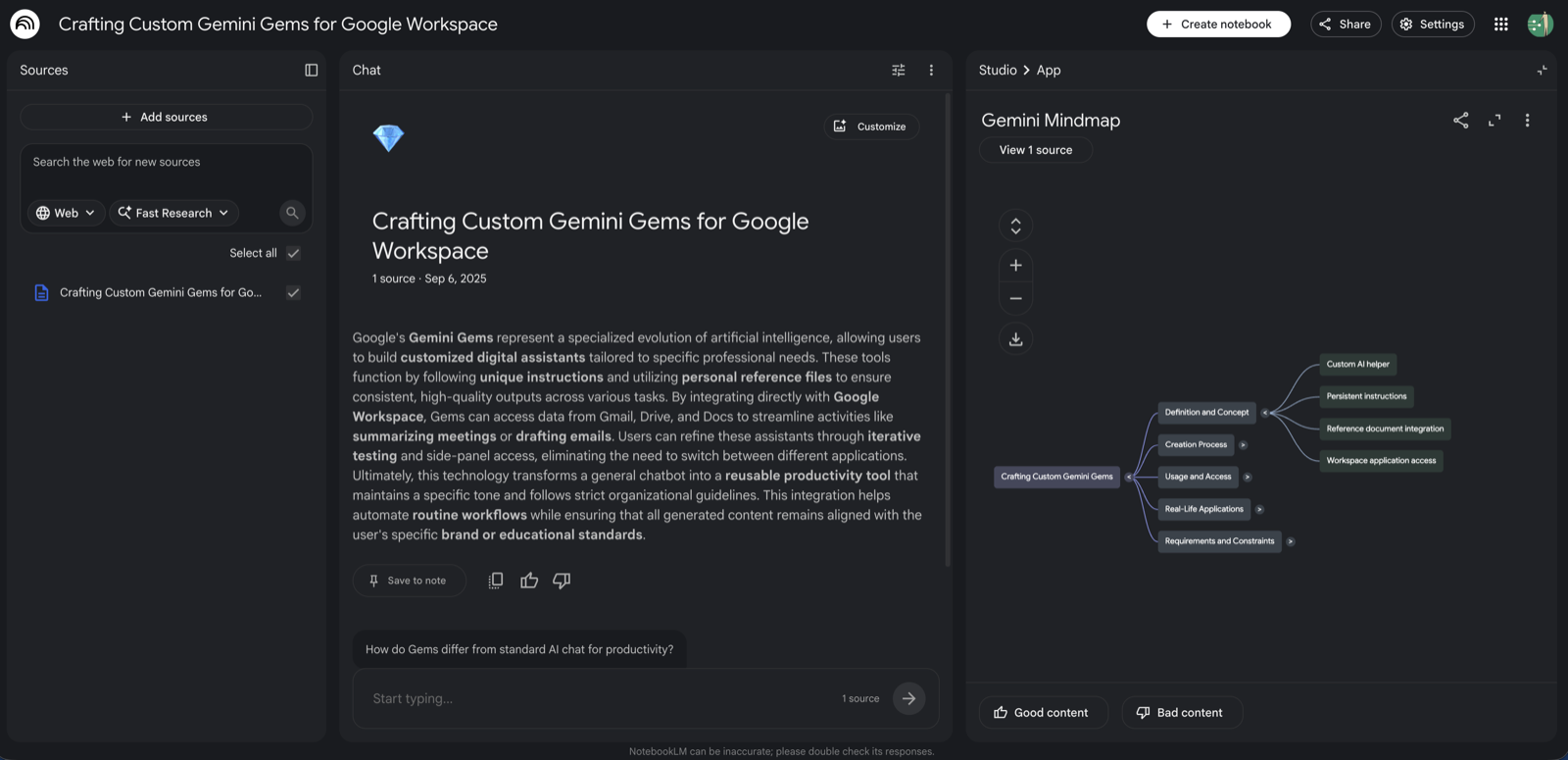
- Mind Maps — a clickable diagram that shows how the ideas in your sources connect; click any node to expand into sub-topics.
- Reports — written summaries, briefing documents, or a custom report you describe, such as a parent-friendly newsletter or a reading guide.
- Slides & Presentations — a first-draft slide deck you can revise by simply describing the changes, then export to PowerPoint (PPTX) or PDF.
- Infographics — one-page visual summaries in a range of styles (Instructional, Professional, Sketch Note, and more).
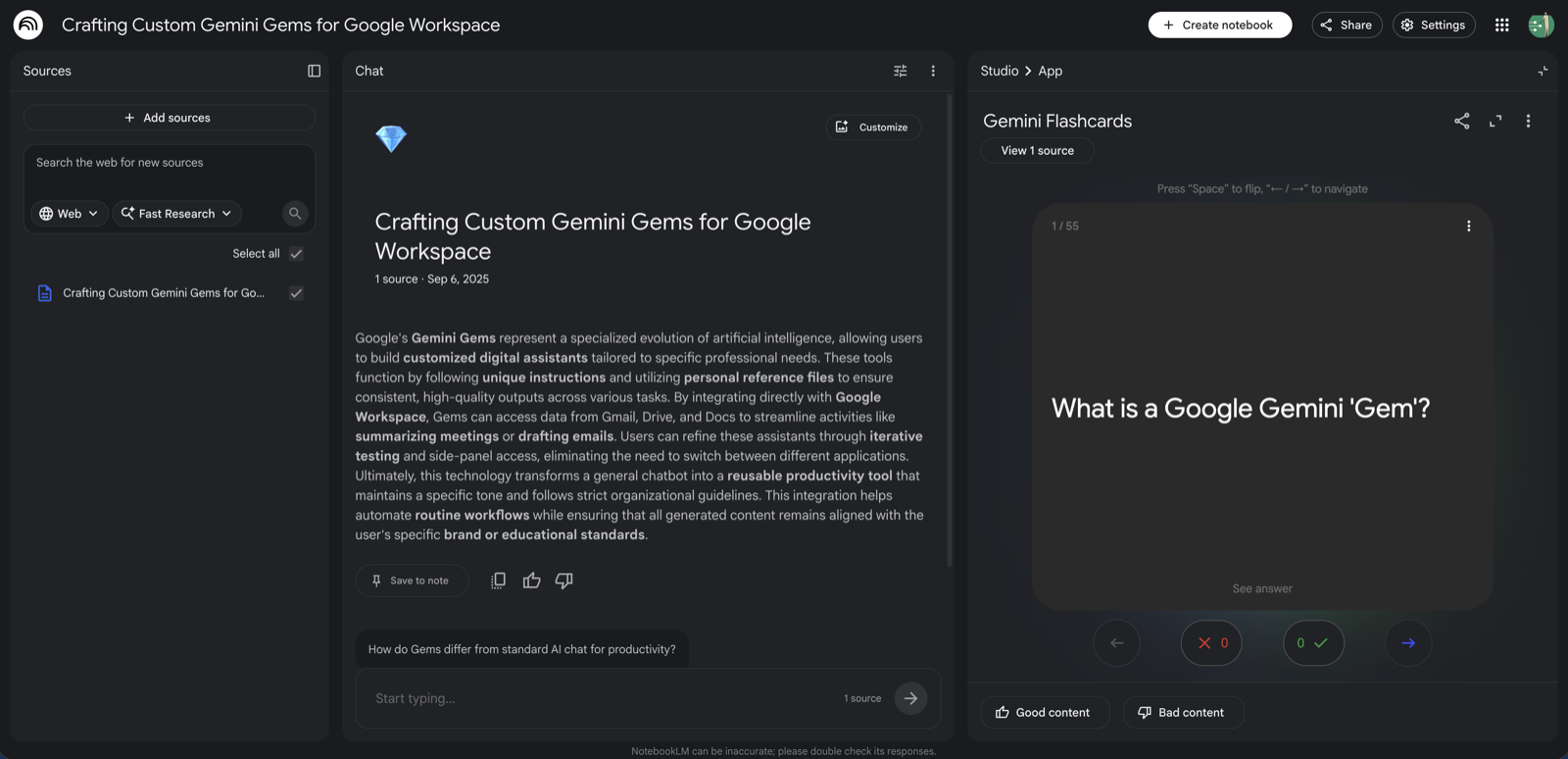
- Flashcards & Quizzes — ready-to-use study sets built from your material. Your progress is saved, and you can mark cards “Got it” or “Missed it,” shuffle the deck, and re-run the ones you missed.
If your students will use it, check the age rules first. Google restricts several of these features for users under 18. In a Workspace for Education account, students under 18 can use Gemini Notebook, Audio Overviews, Video Overviews, Short Video Overviews, Flashcards, Quizzes, Reports, and the chat.
They cannot use Interactive mode in Audio Overviews, Cinematic Video Overviews, Deep Research, Infographics, or Slides (Google updated this list in September 2026). Plan around that before you build a student-facing activity. Google also notes that your organization’s data region settings do not apply to data processed and cached by Gemini Notebook, which is worth raising with your district before you upload anything sensitive.
Alongside the Studio, the chat answers your questions with citations, saves your conversation so you can pick it up later, and can turn any discussion straight into an Audio Overview, Video Overview, or report. Google also states that files you upload to your personal notebooks are not used to train its AI models.
How to Use Gemini Notebook
- Go to notebook.google.com and sign in with your Google account. The free plan is generous. Since September 2026 your limit on a personal account is measured by how much computing each request uses rather than by a fixed daily count (school and work accounts keep daily caps set by their Workspace edition), so a short question costs far less than a full Video Overview. A meter under the chat box shows what you have left, the quota refreshes every five hours, and a paid plan (Google AI Plus, AI Pro, AI Ultra, or a Workspace for Education plan) raises the ceiling.
- Create a new notebook and upload your sources: PDFs, Slides, Docs, audio files, web links, YouTube URLs, or EPUB e-books.
- Use the chat to ask questions or request summaries grounded in those materials, for example: “Summarize the key trends in these documents” or “Create a study guide from these slides.”
- Open the Studio panel and pick what you want to create: an Audio or Video Overview, a Mind Map, a Report, a slide deck, or a study set. Customize the format, language, audience, and focus (for example, “explain this for someone brand new to the topic”), then generate.
We actually used Gemini Notebook to create some of this course’s videos, uploading our lesson scripts and guiding the tool to generate narrated video overviews. It saved us hours of manual editing and helped the visuals match the teaching flow. Here is a quick look at Gemini Notebook in action.